




The ASUS ProArt PX13 is designed for creators on the go, with a versatile 2-in-1 form factor borrowed from its gaming brother, the ASUS ROG Flow X13. ASUS was right to launch the ProArt PX13 in 2026, with it having the advantage of a much more efficient CPU, with enough power to rival RTX 5070-based laptops in a much compact form factor. The Asus ProArt PX13 is a flexible powerhouse aimed for creators on the go. Let’s see if it holds up to the ProArt line
AMD Ryzen AI Max 395+
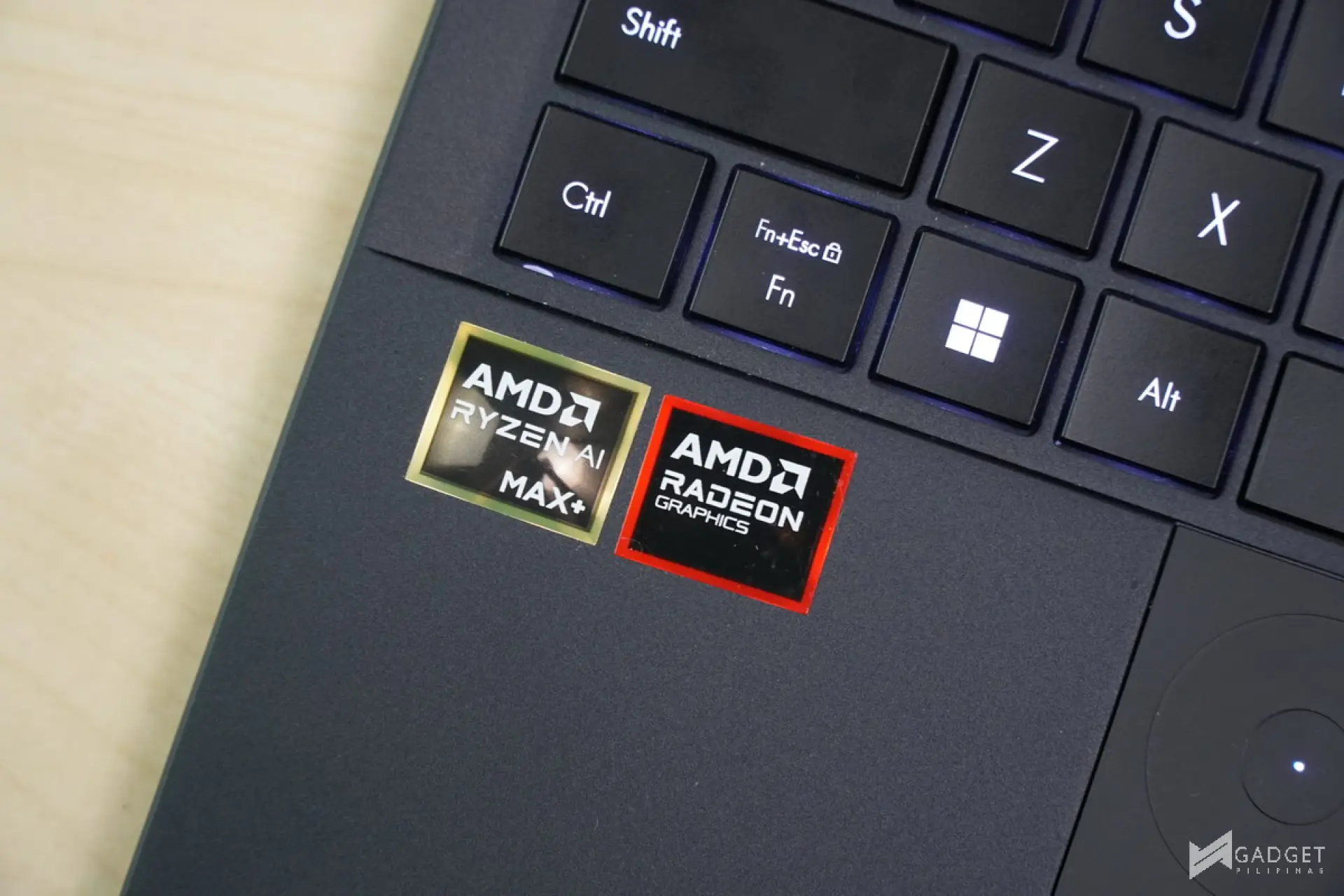
Half of what makes the ASUS ProArt PX13 desirable, even among non-creatives, is the AMD Ryzen AI Max 395+ processor powering the device. The AMD Ryzen AI Max 395+ features 16 Zen 5 CPU cores with 32-threads. It has the 40-core Radeon 8060S Graphics for its GPU. What makes this chip so coveted in AI, gaming, and productivity is its unified memory, giving the users the flexibility to adjust the RAM allocation depending on their workload.
ASUS ProArt PX13 HN3706– A Closer Look
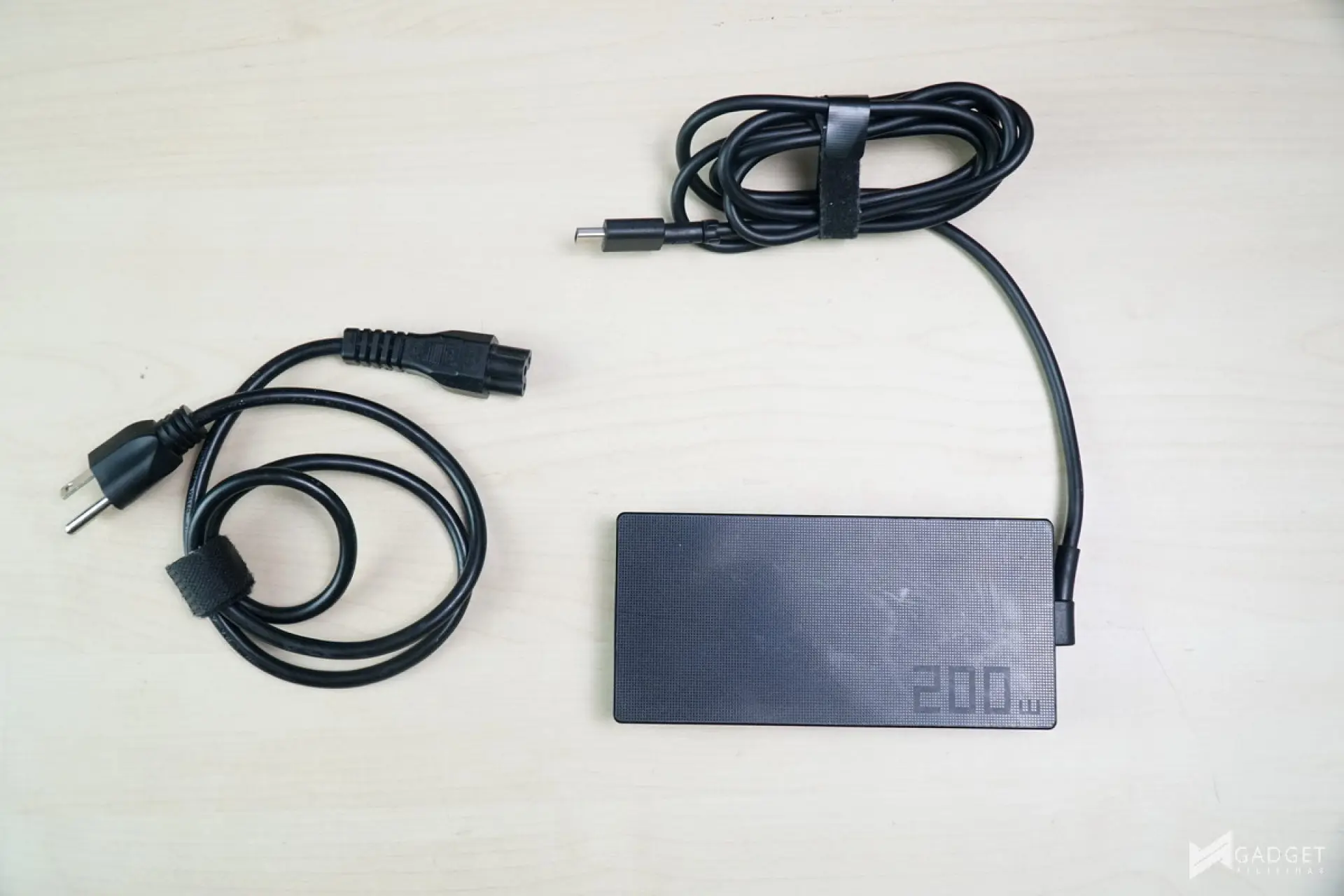
ASUS includes a 200W Charger, an ASUS Pen 3.0 stylus, an ASUS Pen 3.0 Charger, and a laptop sleeve. Surprisingly, ASUS didn’t include a 65W or 100W charger with the ASUS ProArt PX13 2026. The additional Type-C charger has been a bonus accessory on ROG and more powerful Zenbook laptops.
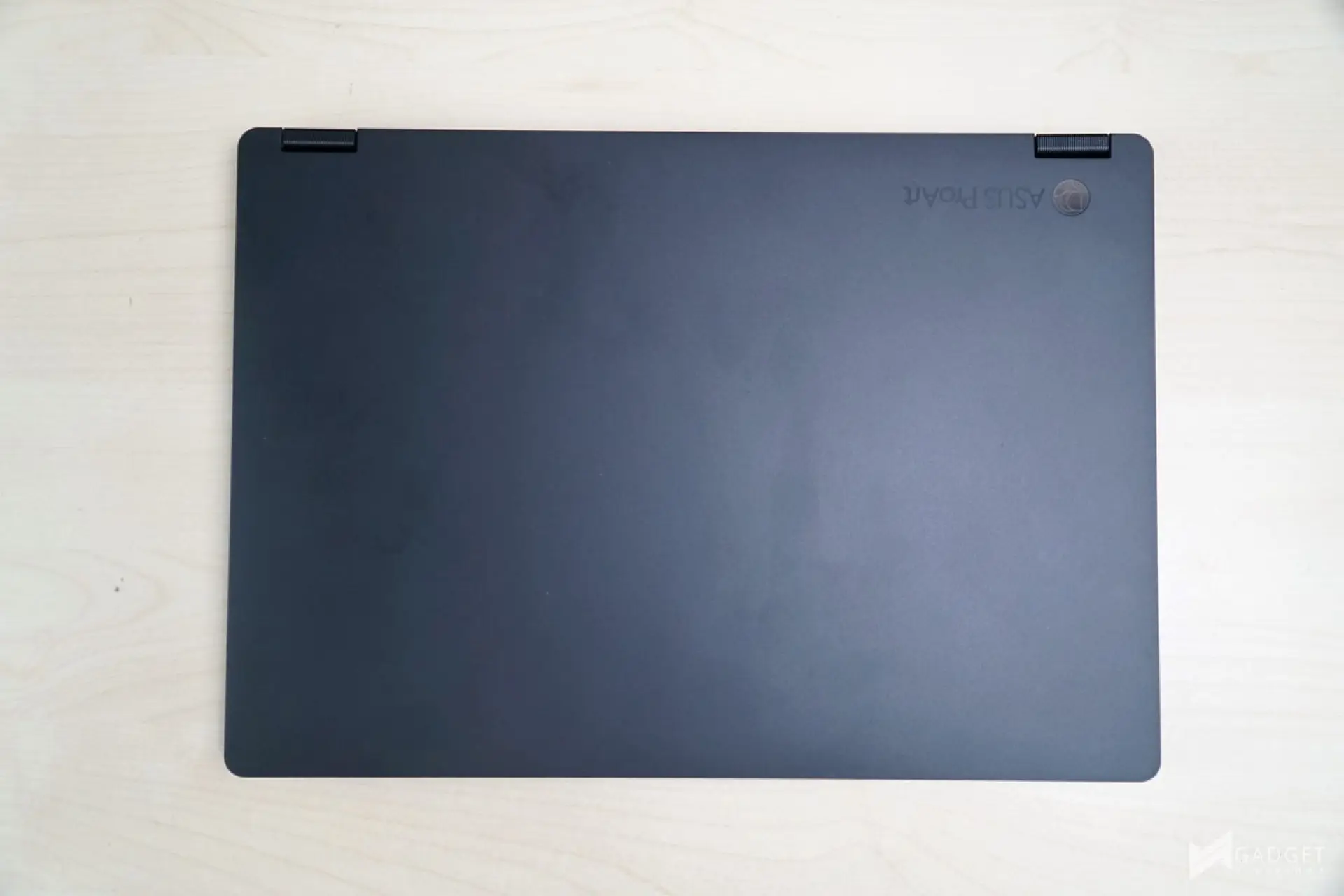
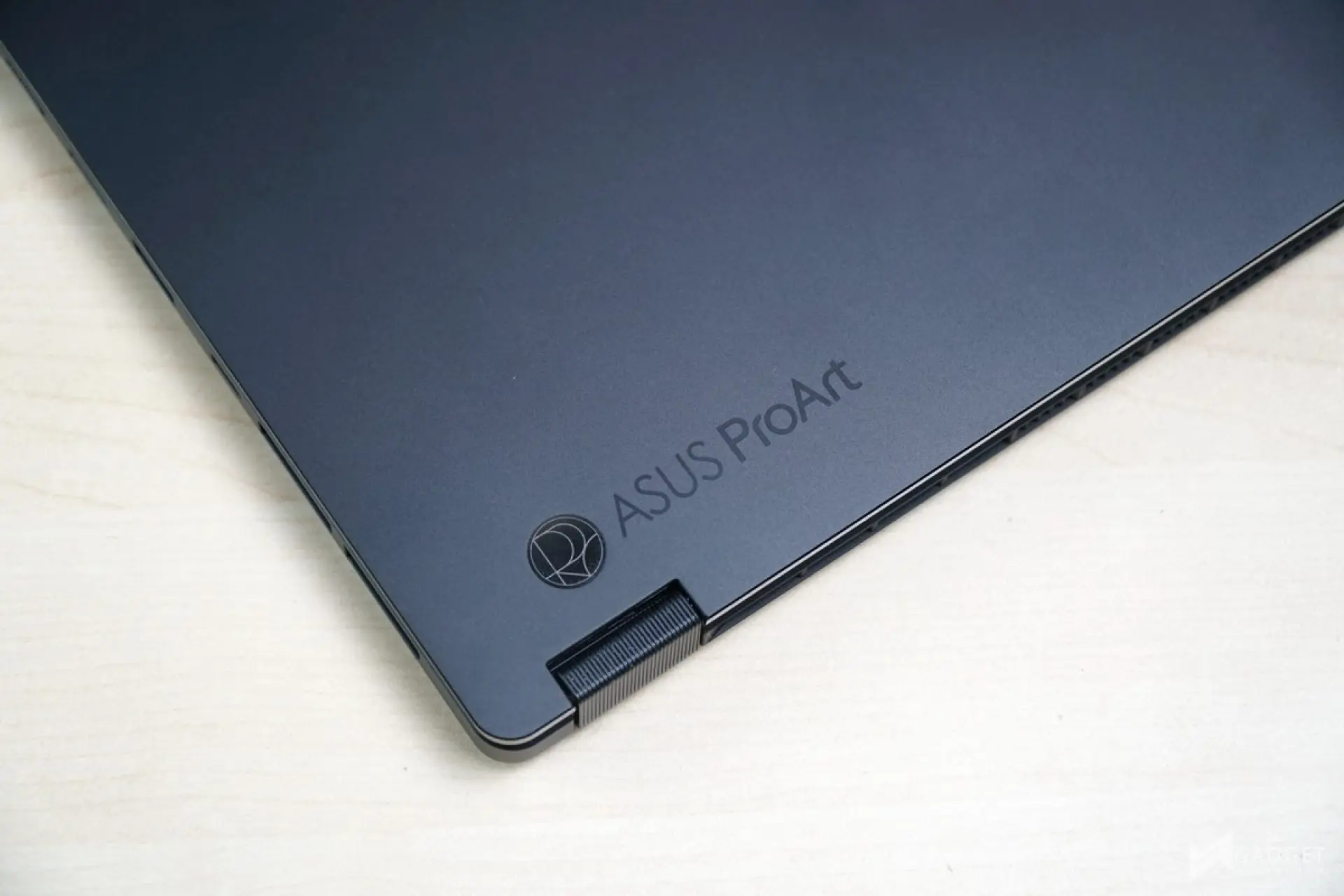
ASUS infused its Zenbook DUO 2026 with its signature Ceraluminum design. ASUS calls this colorway moher gray, which has a very nice matte finish and texture. It’s definitely a bit more premium feeling than existing ASUS Ceraluminum laptops. The subtle ASUS ProArt branding on a corner makes it feel more premium and clean overall.
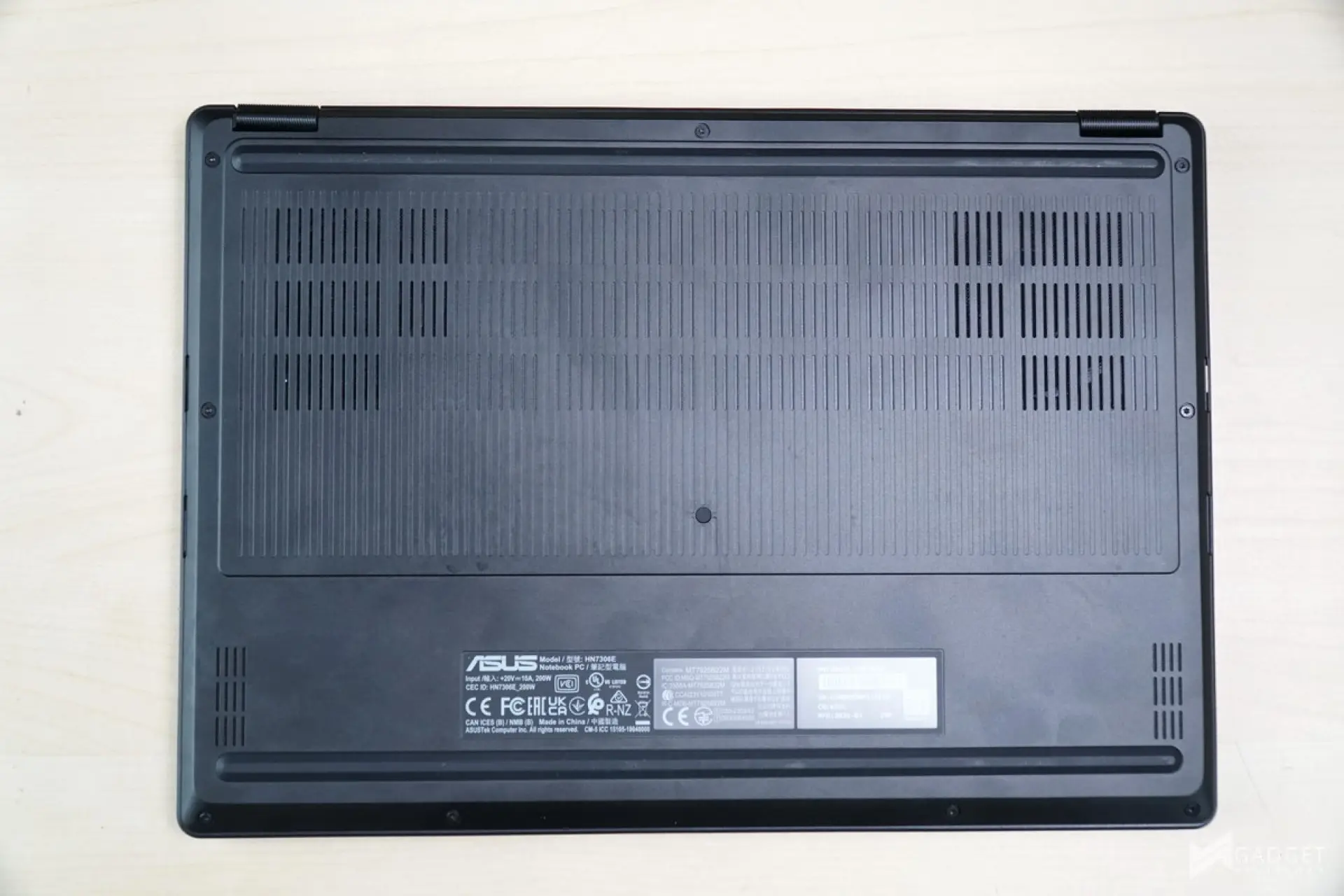
Unlike most ROG laptops, and even compared to the ROG Flow X13 2022, the vent cutouts on the ASUS ProArt PX13 2026 are surprisingly minimal, especially since the fans aren’t fully exposed to draw in more air.
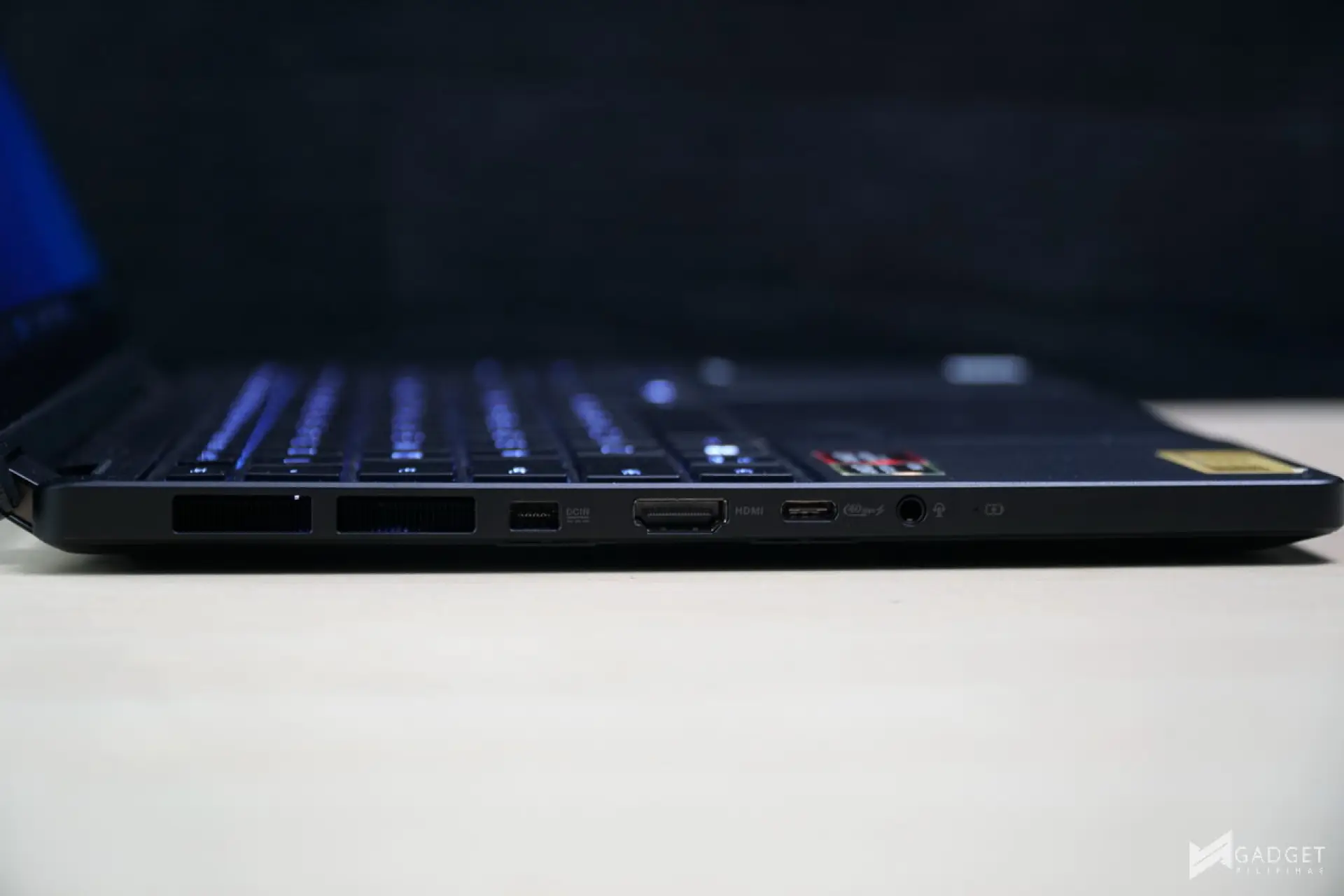
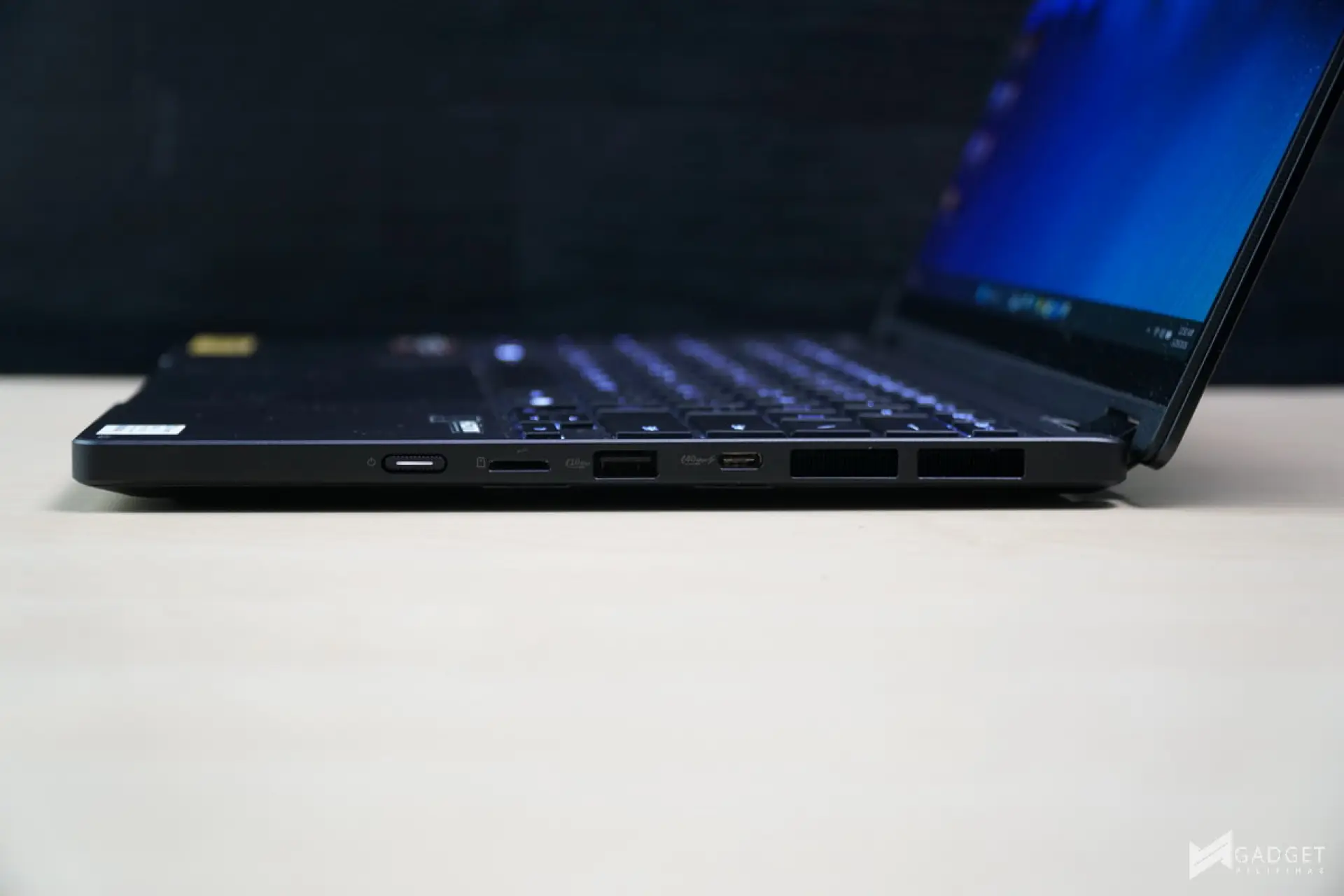
Thin and light laptops suffer from limited port selection, but the ASUS ProArt PX13 packs in as many ports as it can, especially given that almost half of its sides are occupied by exhaust vents. On the left side, you have the proprietary box power connector, one HDMI 2.1 FRL port, one USB 4 Gen 3 Type-C port with support for display and PD, and one 3.5mm combo audio jack. The right side houses another USB 4 Gen 3 Type-C port, one USB 3.2 Gen 2 Type-A port, one microSD 4.0 card reader, and the power button. The ProArt PX13 surprisingly has more ports than the ZenBook DUO, which has more space to work with. That said, it would’ve been better to see a full-sized SD card slot instead of a microSD card slot for better compatibility.
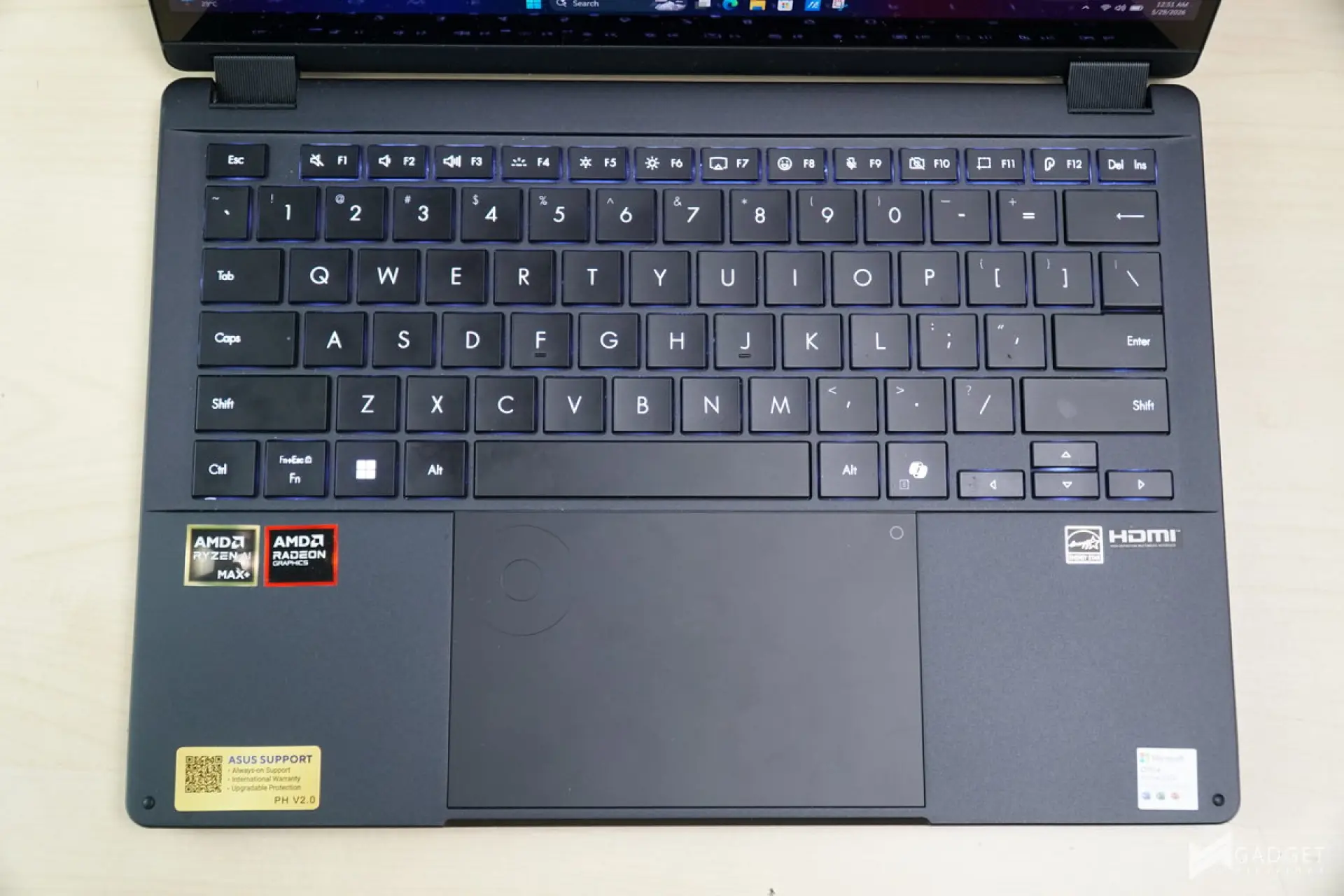
The keyboard area is a bit of a mixed bag. I, for one, accept the layout improvements over those of the ROG Flow X13 2022, especially its much brighter keyboard lighting. The larger mousepad area, a signature of ASUS Zenbooks and Vivobooks, has been carried over to the ProArt line, maximizing the space available in the keyboard deck.
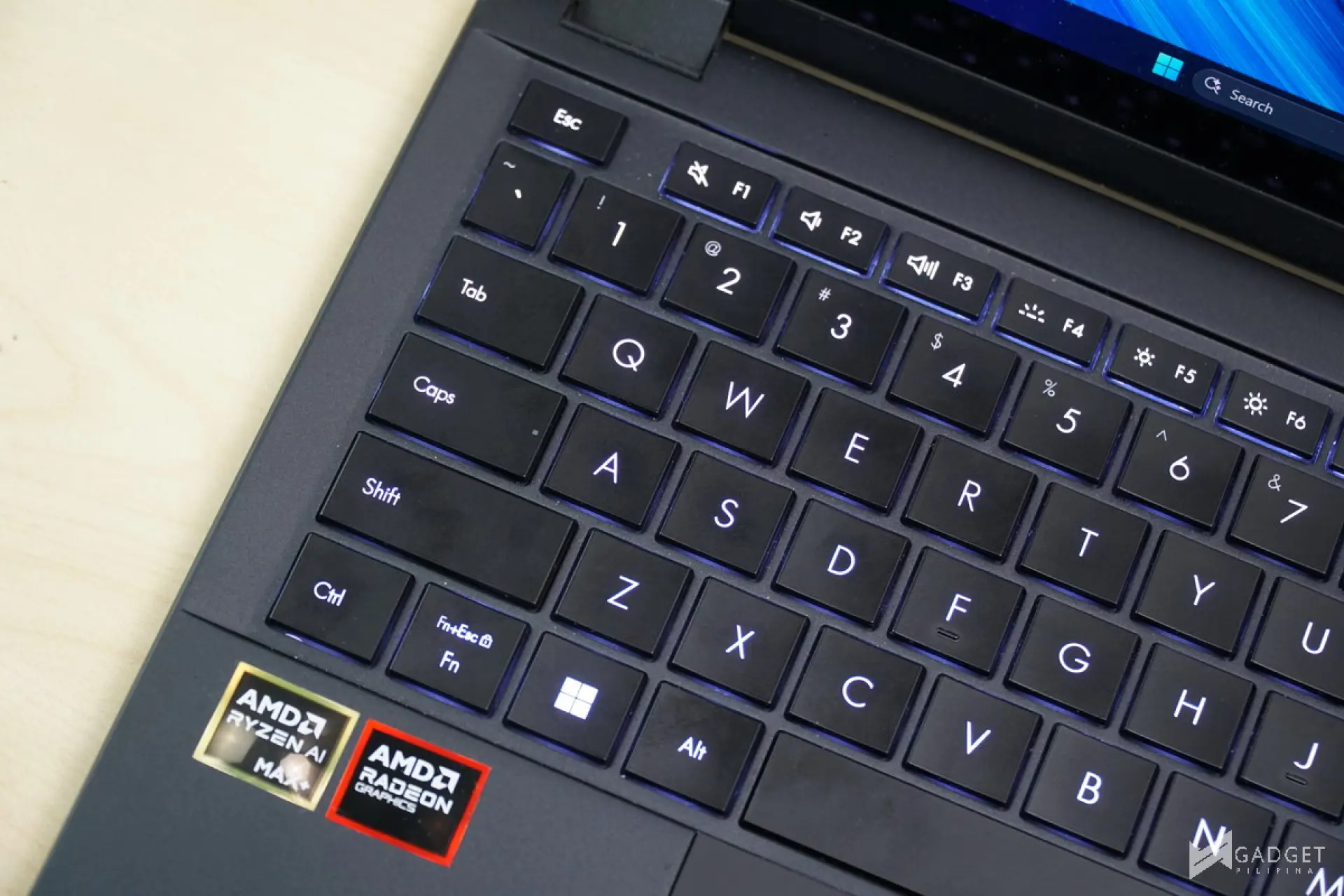
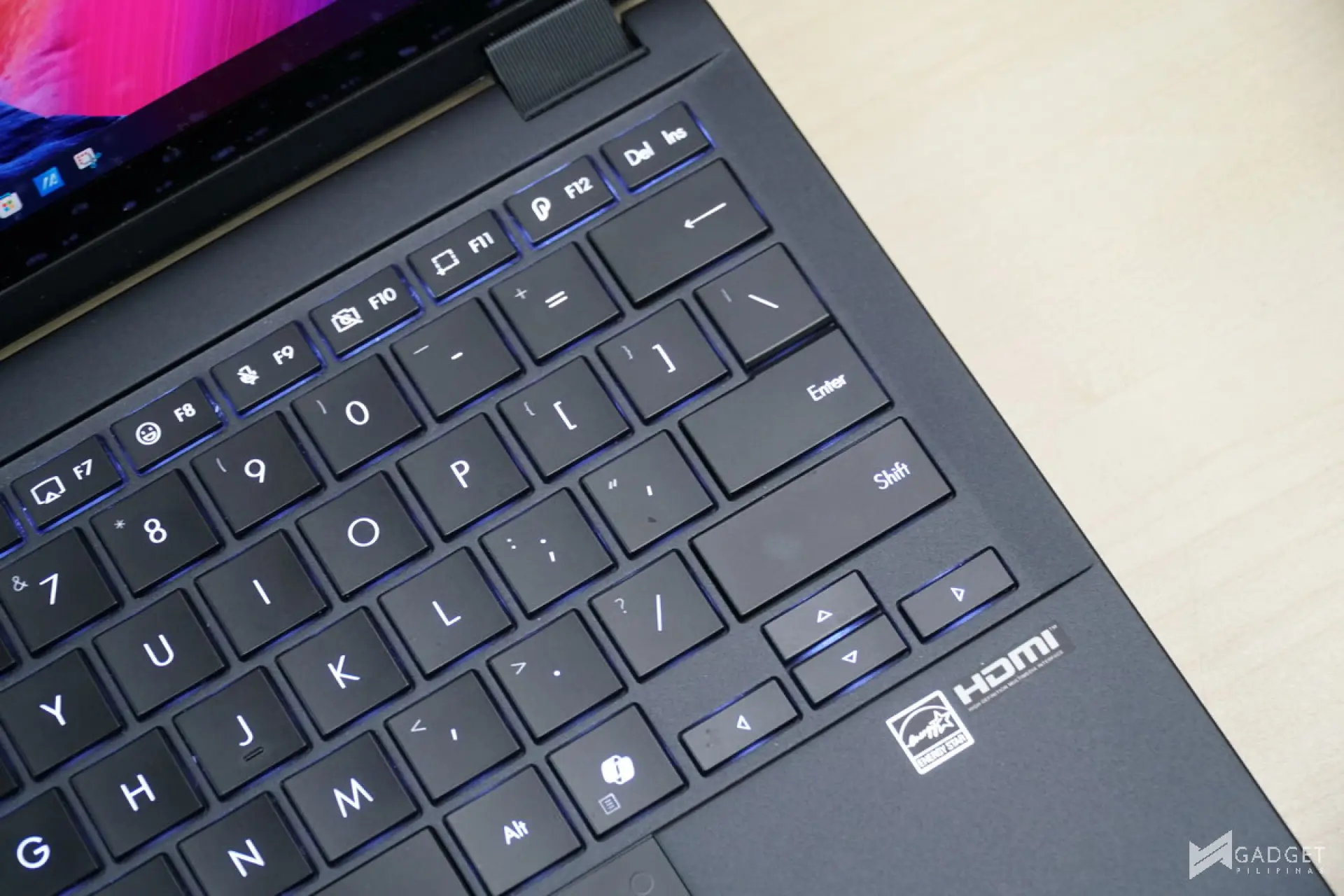
Unfortunately, the typing experience on the ASUS ProArt PX13 2026 is very different from that of the Flow X13 and even from that of previous Zenbooks. It’s easily the worst one we’ve tested so far, especially with the wobbly keys and inconsistent actuations when pressed off-center.
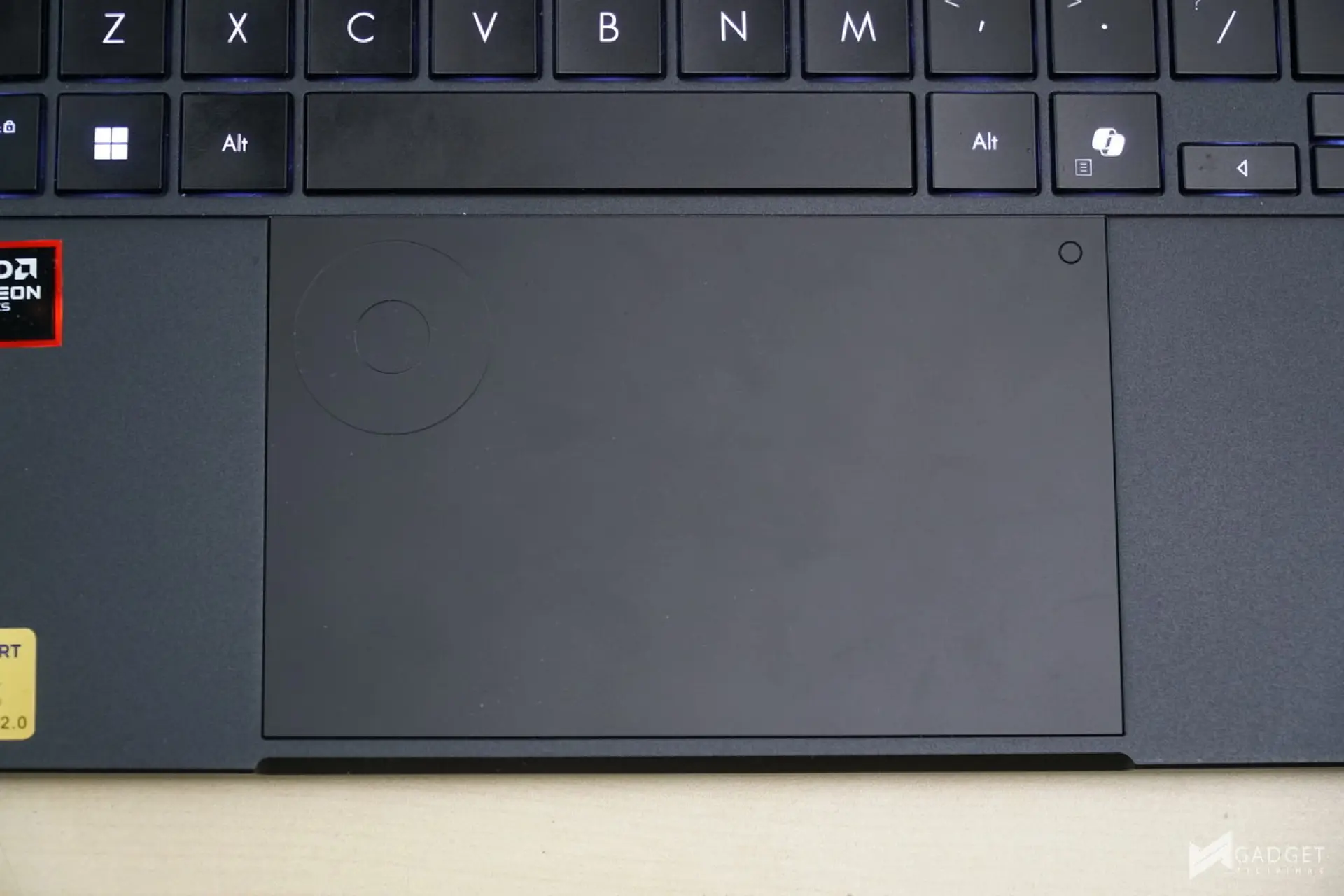
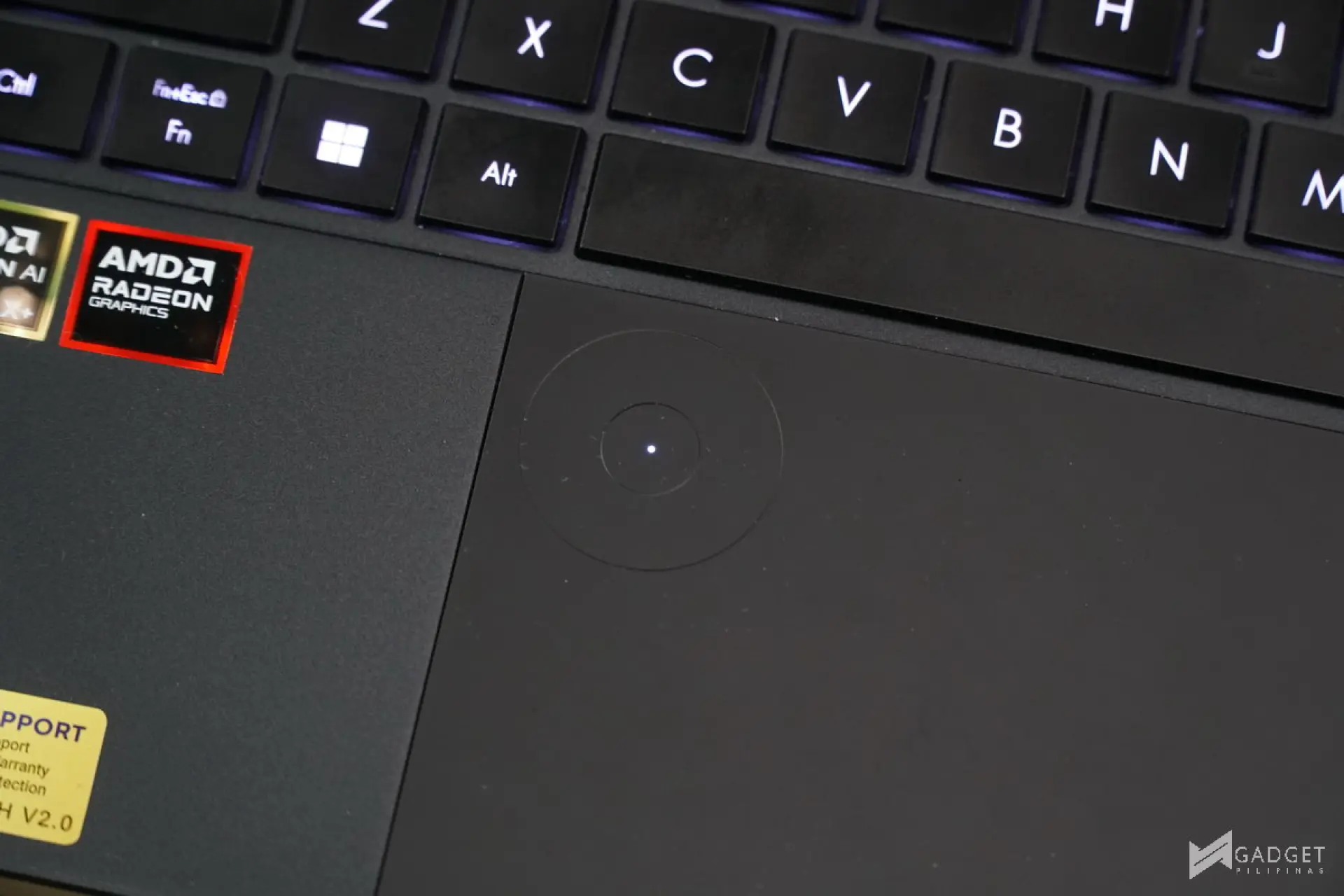
Unique to ProArt laptops is its signature ASUS Dial. Unlike the ones found on older ProArt laptops, which have a separate physical dial, the one on the ProArt PX13 is integrated into the touchpad and is dubbed the DialPad. It’s activated by swiping diagonally from the upper right corner. There’s an LED indicator that lights up when the DialPad is active.
ASUS ProArt Mouse MD301
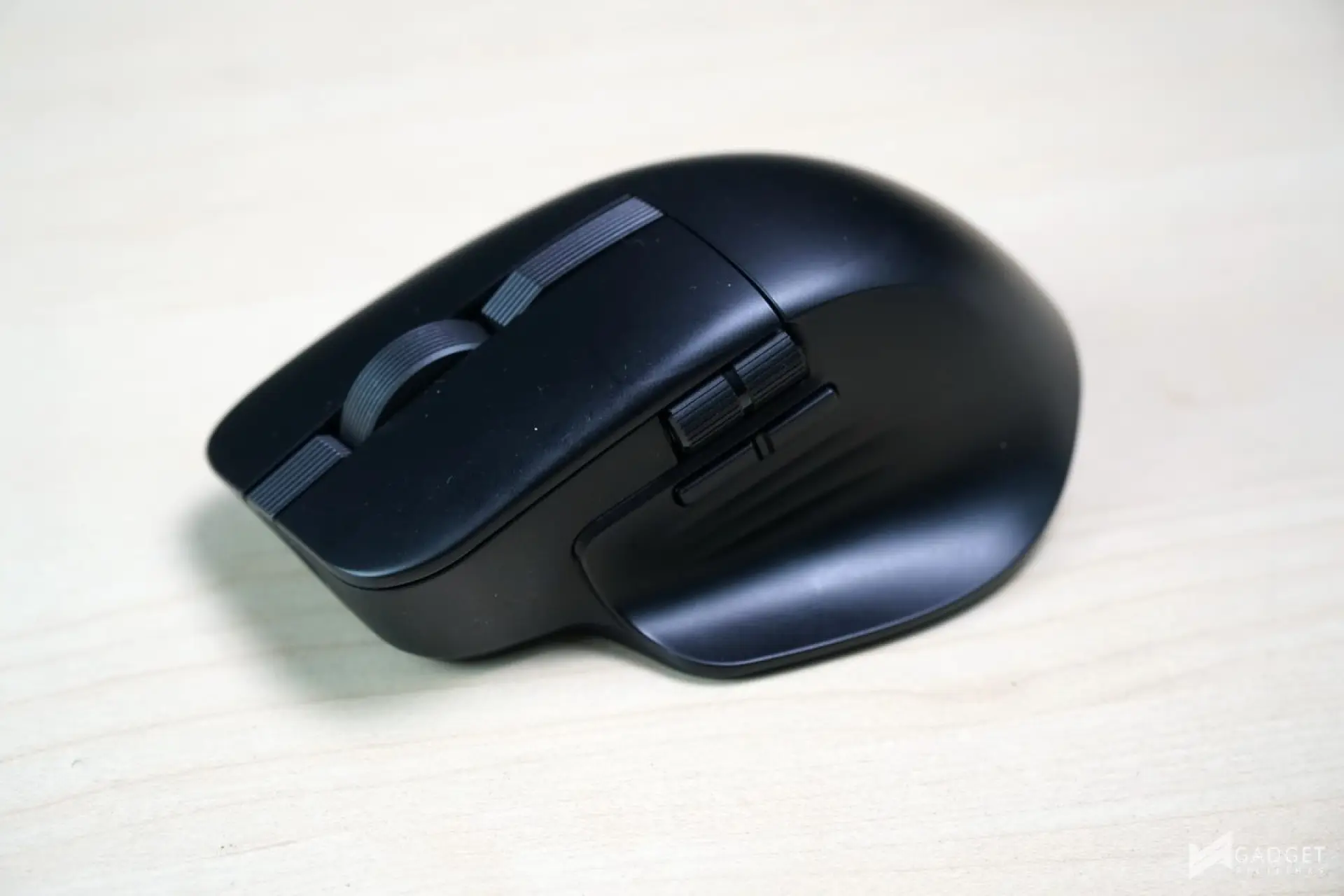

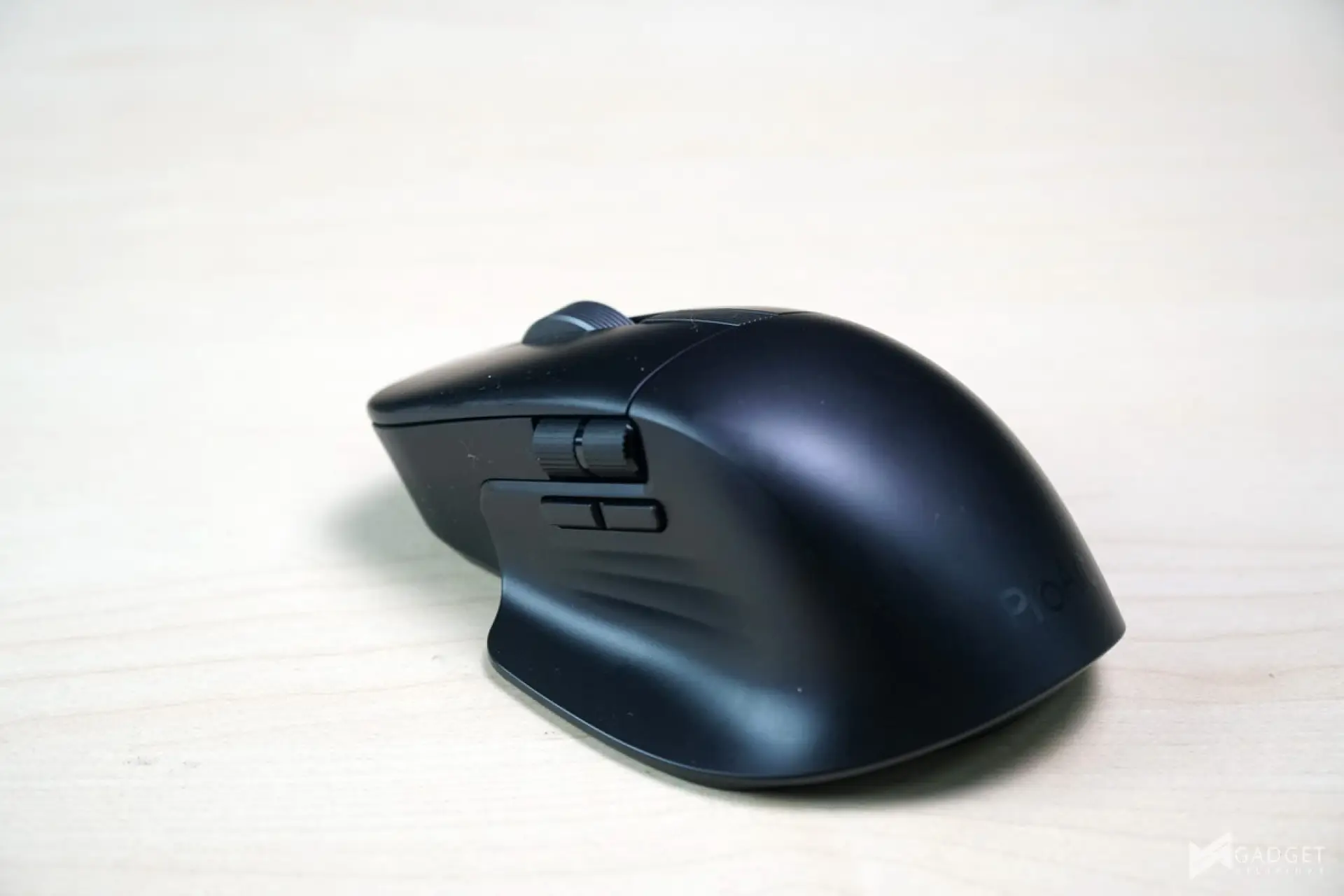
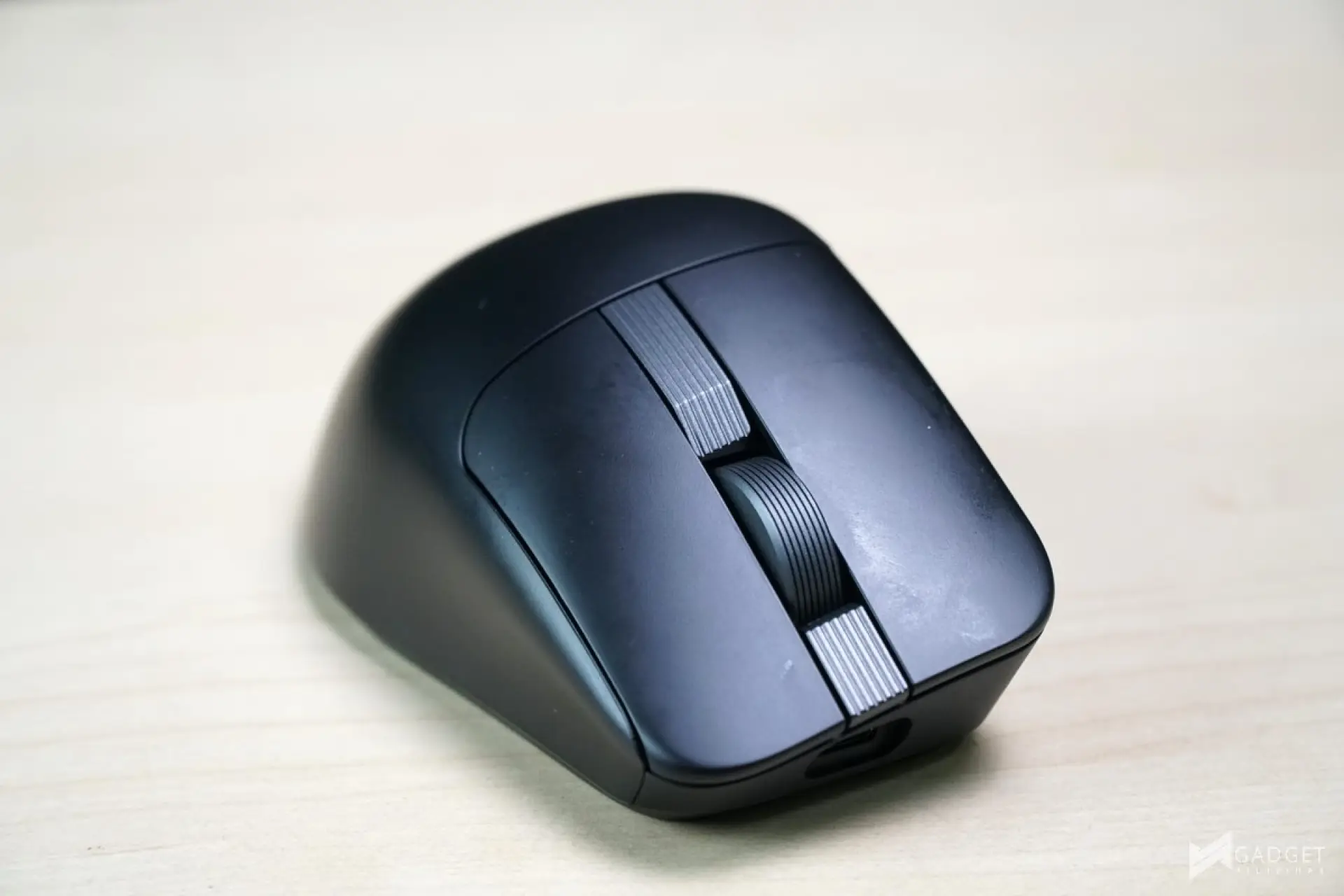
Alongside the release of the ASUS ProArt PX13 is a new ASUS ProArt mouse to complement the laptop. Albeit sold separately, the ASUS ProArt MD301 Mouse is a great pair for the ProArt PX13, especially if you want to use the trackpad exclusively as the ASUS DialPad to avoid uncessary triggers or swipes.
ASUS ProArt PX13 Display

ASUS ProArt laptops are known for their superb, color-accurate display, and the ASUS ProArt PX13 is no exception. The ProArt PX13 is equipped with a 13.3-inch 2880×1800 16:10 OLED display with a 0.2ms response time and 60Hz refresh rate. The display has a peak brightness of 400nits and an HDR peak of 500 nits and is PANTONE validated.
Benchmark Setup and Test Methodology
Gadget Pilipinas’ testing philosophy is to provide detail-oriented results as accurately as possible so that our readers can replicate our tests, given that these conditions are met. Different benchmarking apps and sequences are used depending on the component or device being tested.
We use CapFrameX 1.8.5 as our primary FPS capture and analysis tool for all our gaming benchmarks. The latest Windows 11 Pro build and WHQL-certified drivers are used for our benchmarks. Readings such as temperatures and power draws are recorded using HWINFO64 and OCCT Enterprise.
We benchmarked the ASUS ProArt PX13 across its different power settings in MyASUS Software – Whisper, Standard, and Performance. The main purpose of benchmarking power profiles is to show how aggressive or conservative the manufacturer is regarding thermal management. These profiles will affect the CPU and GPUs’ boosting behavior in terms of duration and maximum clock speed, which will translate into higher scores and more stable framerates.
As part of our 2024 laptop benchmark methodology revamp, we’ve changed how we test these profiles. Synthetic and Productivity benchmarks include all of the power profiles. We decided to drop the silent or power-saving profile for gaming benchmarks, as these lowest profiles generally produce unplayable framerates, especially at 1440p and above. Moreover, games are tested at the laptop’s native resolution, as we expect most, if not all, gamers to play at that resolution.
For more information, read our Benchmark Methodology article.
ASUS ProArt PX13 Benchmarks
CINEBENCH 2026
Maxon’s Cinebench benchmark is one of the most iconic benchmark applications used by reviewers and enthusiasts. The latest Cinebench 2026 uses the latest rendering architectures, including Intel’s Embree ray tracing technology and other advanced features from AMD and Intel, enabling users to render the same scene on the same hardware.
ADOBE PREMIERE PRO 26 VIDEO EDITING – PROCYON
Procyon benchmark suite is developed by the UL, the same team behind 3DMark and PCMark benchmarks. The UL Procycon video editing benchmark uses Adobe Premiere as part of a typical video editing workflow. The benchmark starts by importing two video project files with various edits, adjustments, and effects – the second project uses several GPU-accelerated effects. Each project is exported in 1080p with H.264 encoding, and again in 4K with HEVC (H.265) encoding. The reported score is based on the time taken to export all four videos.
PCMark10
From the same developers of the popular game benchmarking tool 3DMark, PCMark 10 is a benchmarking app for measuring a whole PC’s performance. It covers a wide variety of tests to reflect common tasks performed in a modern workplace. We selected PCMark 10’s extended benchmark and reported both the overall score and Digital Content Creation Score.
V-RAY 6
V-Ray Benchmark is a stand-alone version of V-Ray developed by Chaos Group. It is designed to test the CPU and GPU by rendering sample scenes within a fixed amount of time. V-Ray is a plug-in primarily used in 3D computer graphics software, mainly for industrial design, product design, architecture, film, and video game production. V-Ray is not limited to 64-threads as it supports multi- and mega-threading.
BLENDER
Blender is a widely used, free, open-source 3D creation suite. It supports the entire 3D pipeline, including modeling, rigging, animation, simulation, rendering, and even motion tracking. Blender has become a standard for CPU benchmarks, with the BMW27 and Classroom Scene being the most used. This prompted the company to release the Blender Open Data Benchmark in 2018, a benchmark-specific version that allows users to run a preset benchmark and share the results online, similar to 3DMark.
OCCT Enterprise Benchmark
OCCT is a popular benchmark and stability testing tool among overclockers, enthusiasts, and system integrators. OCCT utilizes several specialized instruction sets and algorithms to saturate hardware resources and expose architectural weaknesses.
SuperPI 32M
SuperPI is a single-threaded benchmark application that lets the CPU calculate Pi(π) to the nth digit. In this benchmark, we selected the Pi calculation to 32M, the highest available for the app.
wPrime 1024M
wPrime is a benchmark tool similar to SuperPI, but it focuses on finding prime numbers using Newton’s Method. The benchmark is set to compute 1024 million prime numbers, and performance is measured by calculation time.
GeekBench 6.6
Geekbench is a multi-platform benchmark used to gauge CPU performance and compare it across Windows, Mac, and Mobile. Geekbench 6 is the latest version and doesn’t rely as much on memory as the previous Geekbench 4, making it a great tool for measuring both single-core and multi-core CPU performance.
CORONA RENDERER
Corona Renderer is an unbiased, photorealistic rendering engine available for Autodesk 3ds Max, Maxon Cinema 4D, and as a stand-alone application. Its popularity, similar to Blender’s, led Chaos Group to develop a benchmark version of the app that runs on Corona Renderer 1.3. Workstation systems, especially CPUs, can utilize the Corona Benchmark, which supports up to 72 threads, making it well-suited to CPUs across various price segments.
BapCo CROSSMARK
Crossmark is one of the few native cross-platform benchmark tools available for Windows, Android, Linux, ChromeOS, iOS, and macOS. It measures overall system performance and responsiveness using models of real-world applications, making it a great basis for comparison across multiple platforms.
OCTANE 2.0 PLUS
Octane 2.0 is a benchmark that measures a JavaScript engine’s performance by running multiple tests that represent different use cases for JavaScript applications. While Google Octane is retired and no longer maintained, it is still a good representation of today’s dynamic, interactive web applications. Our Octane 2.0 benchmark is run on Microsoft’s latest Chromium-based Edge browser.
ASUS ProArt PX13 SSD Benchmark
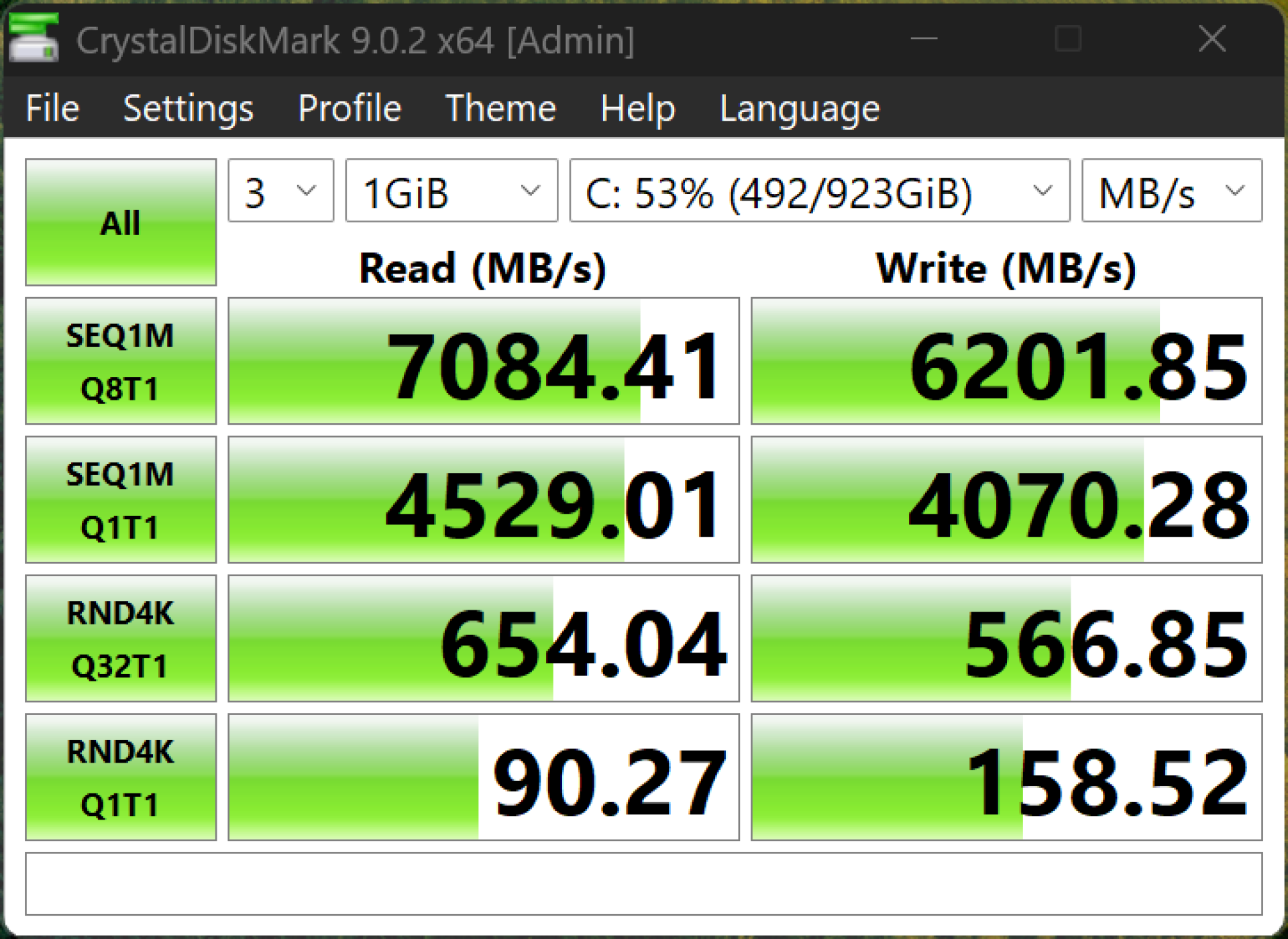
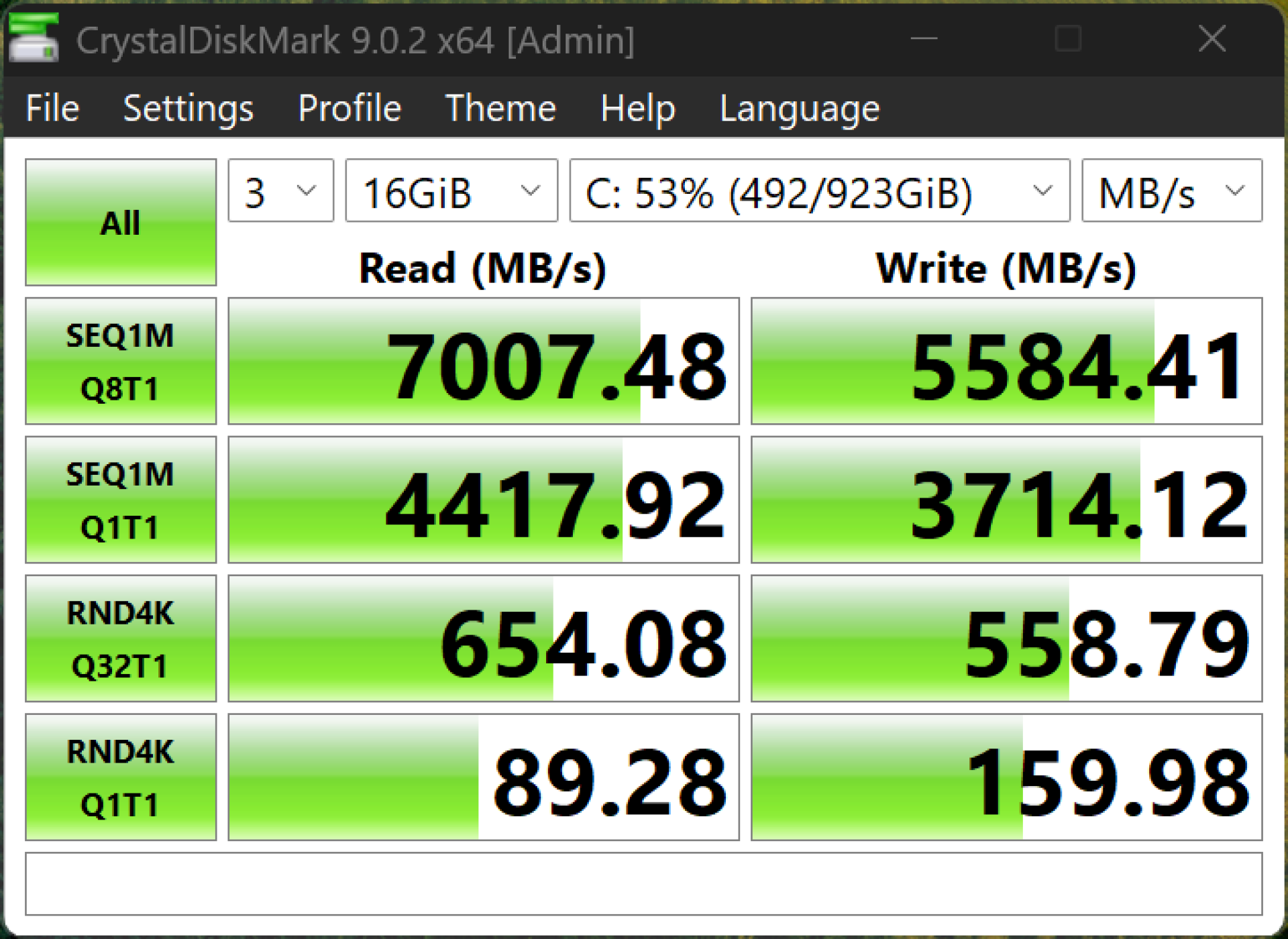
ASUS used a Sandisk SN5100S 1TB Gen4x4 NVME SSDon the ProArt PX13. It has a rated read and write speeds of 6,600 MB/s, and 5,600 MB/s respectively. Unfortunately, the ProArt PX13 doesn’t have an extra NVMe slot so you’re forced to deal with the original SSD should you wish to upgrade.
ASUS ProArt PX13 Battery Life & Temps
The AMD Ryzen AI Max 395+ paired with the ASUS ProArt PX13’s 73wHr battery yielded an 11-hour battery life on our PCMark10 Modern Office benchmark. Switching from the Standard mode to the Whisper profile extended the battery life for another 30mins. That said, with the negligible difference in battery life, it’s better to utilize the Standard mode for better and more consistent performance.
Conclusion – All-Rounder Laptop for Creatives

The ASUS ProArt PX13 has been one of ASUS’ most creative and useful takes on a 13-inch laptop. Combining the 360-degree flexibility of its ROG Flow X13 and the ProArt line’s ASUS Dial complimented by the touchscreen and ASUS pen, unlocks almost unlimited possibilities in terms of productivity. Frankly, the only thing missing is the missed opportunity to use the ASUS Ceraluminum design found on Zenbooks for a lighter device.
Rounding up the amazing experience of the ProArt PX13 is the performance made possible by the AMD Ryzen AI Max 395+ CPU. In a 13-inch form factor, you can definitely fit an RTX 60-class GPU, but utilizing the GPU without the laptop plugged in will surely cost you a chunk of your battery life. The Ryzen AI Max 395+ doesn’t have that specific tradeoff without losing on performance, and paired with the 73wHr battery, you’re primed for all-day productivity.
That said, the ASUS ProArt PX13 is far from perfect. I’d say it’s almost unpolished compared to the current generation of Zenbooks, but its unique features far more than make up for these compromises. The 60Hz display will certainly feel sluggish for those used to high-refresh-rate displays, but its 0.02ms response time, especially when using a Bluetooth mouse, will offset the latency. The 32GB of RAM may seem insufficient for some, especially if around 4 GB-16 GB is reserved for the integrated GPU, leaving you with only 16-28GB of RAM.
Overall, the ASUS ProArt PX13 serves its purpose in being an all-rounder, portable laptop for creative professionals. It’s small enough to carry whenever and wherever, but it packs enough performance should you need to revise your project or render something on the go. Ignoring the upcoming NVIDIA RTX Spark laptops, the ASUS ProArt PX13 is your lightest yet most powerful 13-inch laptop to take with you anywhere whether you’re travelling for work or just need a laptop for a “just-in-case” slash “on-call” what-if scenario. At Php 160,000, you’re getting all of ASUS’ engineering innovations across its consumer, gaming, and commercial segments in one device that justifies the use of the “Pro” moniker in a market where the name just means brute-force specs or the highest configuration possible.

Grant Soriano
Grant is a Financial Management graduate from UST. His passion for gadgets and tech crossed him over in the industry where he could apply his knowledge as an enthusiast and in-depth analytic skills as a Finance Major. His passion allows him to earn at the same time help Gadget Pilipinas' readers in making smart, value-based decisions and purchases with his reviews and guides.
View all articles →Related Reviews
 LG PuriCare AeroMini Review: Small Purifier, Big Relief for Home Offices
 ANKER soundcore Liberty 5 Pro: Great ANC for calls and music
 REDMI Note 17 Pro Max Review: Titan Power That Goes the Distance
 realme 16T 5G Review: An 8000mAh Battery With a Price
 OPPO Find X9 Ultra Review: The Camera Phone to Beat in the Philippines
 HP Smart Tank 580 Review: Affordable Everyday Printing Without the Cartridge Cycle