


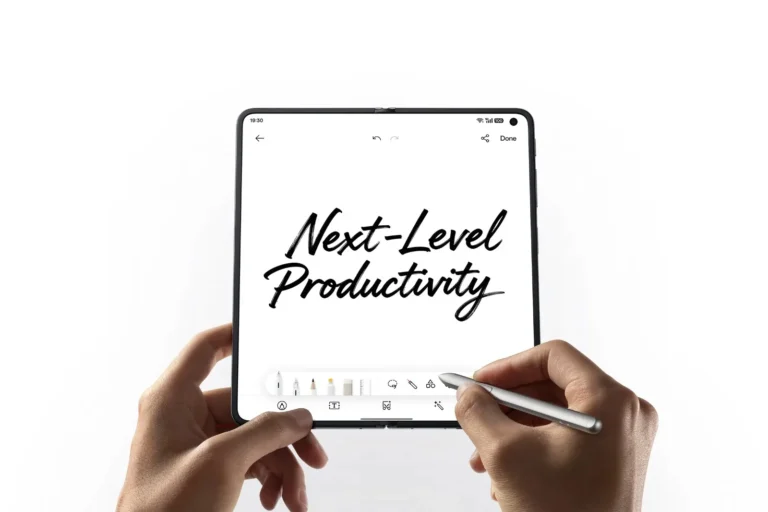
OPPO has laid out two practical ways the OPPO AI Pen can speed up everyday work on the OPPO Find N6: turning hand-drawn meeting notes into clean charts, and adding direct visual feedback to documents. Both features target the gap between an idea on a whiteboard and something a team can actually use.
The typical meeting ends with a whiteboard full of arrows, half-written notes, and shapes that only made sense minutes earlier. Someone has to redraw the chart, type up notes, or explain feedback across scattered screenshots and messages. The OPPO AI Pen is built to close that gap.
OPPO AI Pen: From Whiteboard to Chart with AI Chart
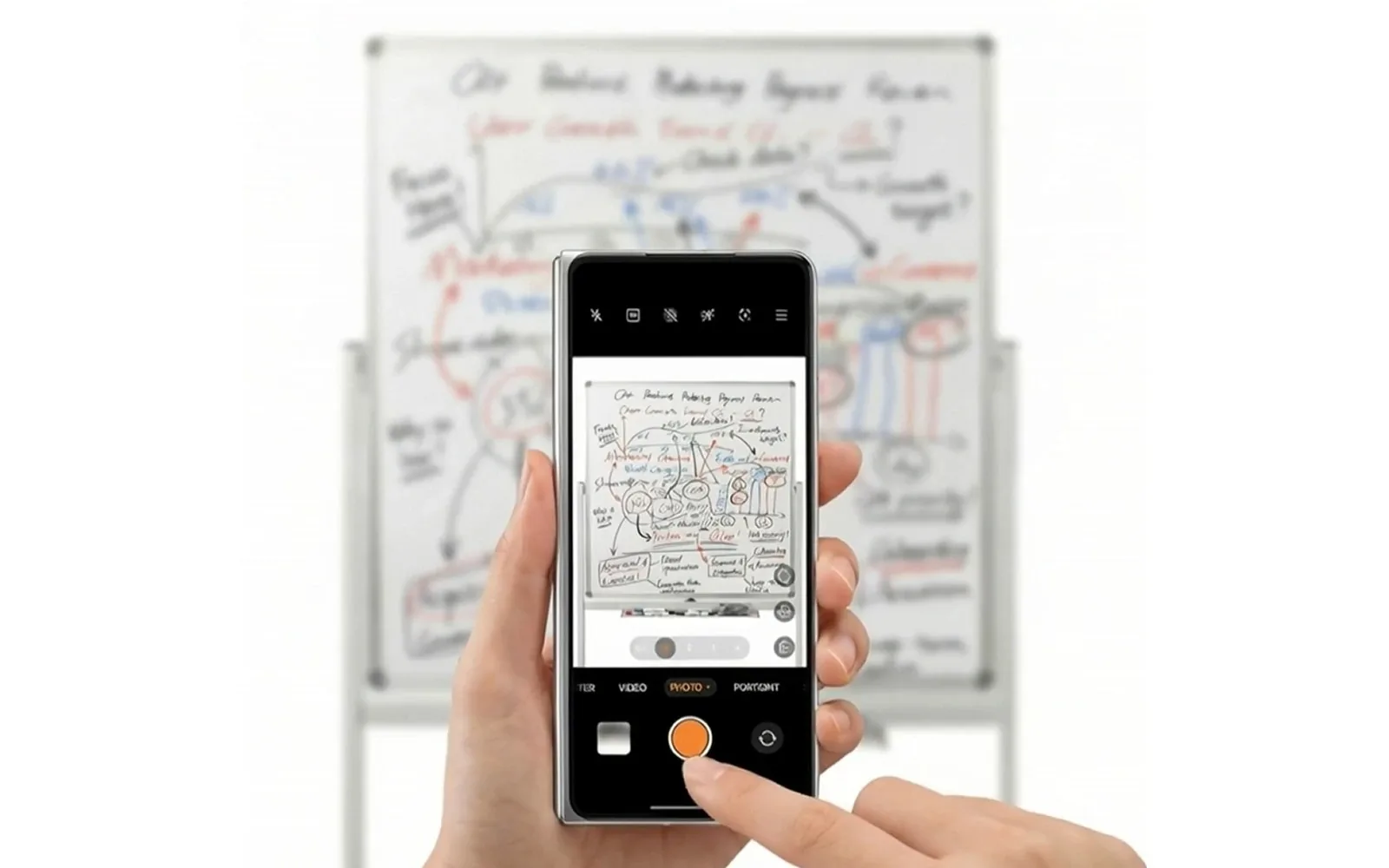
The usual procedure after a meeting is to take a photo of the whiteboard, then spend time recreating it later. The OPPO AI Pen allows for that step to be skipped, since it can turn a photo directly into a polished chart.
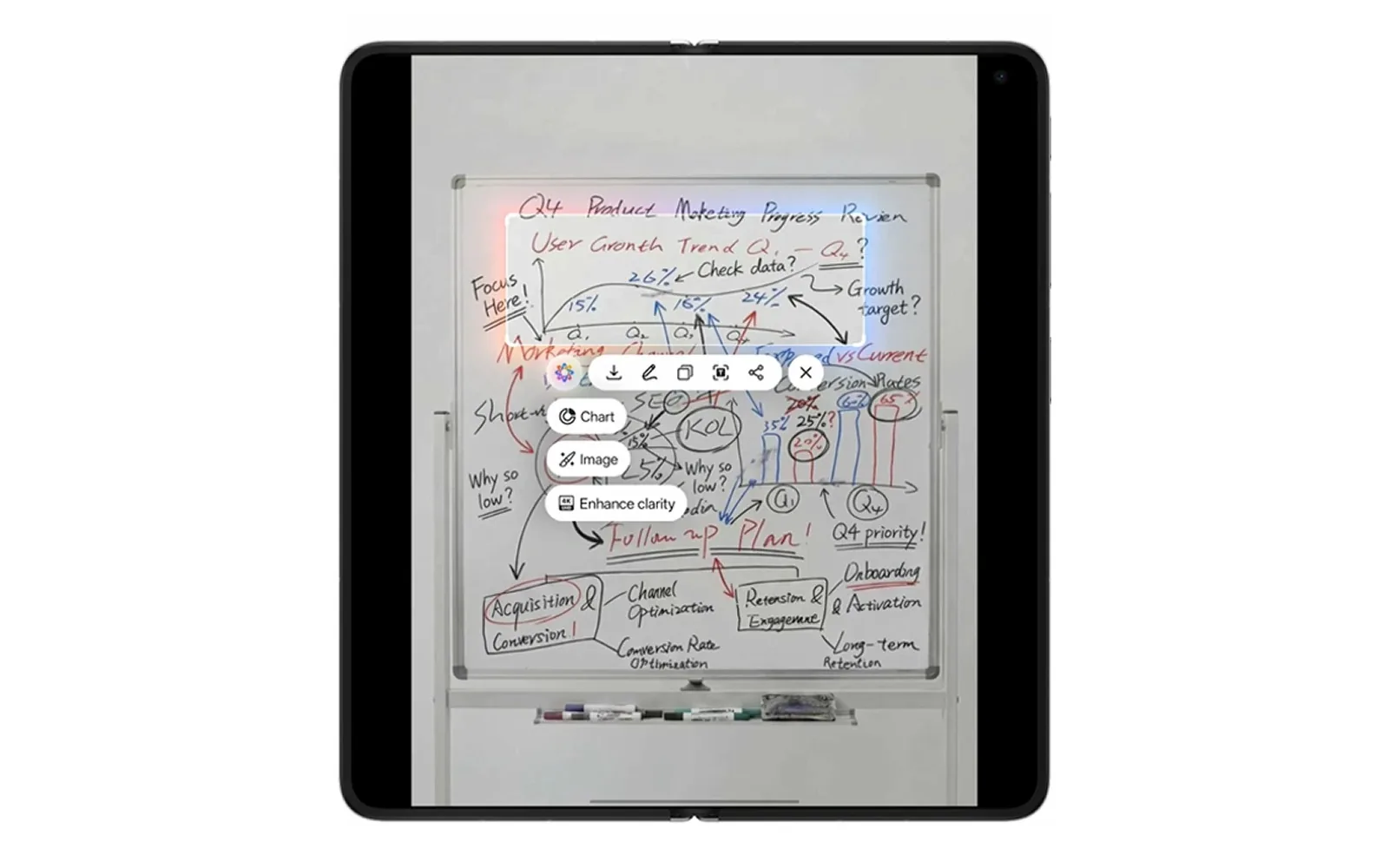
After a meeting, users take a clear photo of the whiteboard with the OPPO Find N6, or use one a teammate already sent. From there, they open the image, press and hold the pen button, circle the area to convert, and activate AI Chart. The lines don’t need to be neat. AI Chart can read the structure even when shapes are uneven or spacing is inconsistent.
Within moments, the system reads the sketch and builds a clean wireframe out of it, keeping the original logic intact but easier to read and share. Users can then fine-tune the result by editing text and data, or applying different styles and colour themes. Those who prefer working by hand can also revise the chart directly with the OPPO AI Pen while the layout stays clean.
Once finished, the chart can be exported as an image, PDF, PPT, Excel, or XMind file, depending on the chart type, ready to drop into a meeting summary, a deck, or a message to colleagues.
OPPO AI Pen: Faster Feedback with Global Annotation
Where AI Chart handles brainstorming output, Global Annotation is built around reviewing documents. On a phone, feedback usually means several screenshots paired with separate explanations, which slows reviews down. Global Annotation lets users write directly on the page instead.
To start, users open the document or image they want to review, press the OPPO AI Pen button to bring up the Stylus Palette, then tap annotate to enter full-screen handwriting mode. Global Annotation lets them scroll through long pages while continuing to write, circling points and adding notes without losing the original layout.
Pen strokes and ink colours can also be changed so feedback is easier to scan, such as one colour for corrections, another for questions, and a third for follow-ups. Once a review is done, they can tap “Share” to send the annotated file as a PDF or JPG, skipping the need for a folder of separate screenshots.
AI Chart and Global Annotation are features meant to cut down the time spent reconstructing whiteboard sketches or explaining feedback line by line, leaving more time for the actual work that follows.
Visit the nearest OPPO store to try the OPPO AI Pen on the OPPO Find N6. For more information, visit OPPO Philippines’ official website or follow OPPO Philippines on Facebook, YouTube, and TikTok.
You may also find out how the Find N6 is replacing the laptop for some executives,
It’s a stylus for the OPPO Find N6 with two workflow features: AI Chart, which converts hand-drawn sketches into digital charts, and Global Annotation, which lets users write feedback directly on documents and images.
Users photograph a whiteboard or hand-drawn note, circle the area with the OPPO AI Pen, and activate AI Chart, which then builds a clean, editable wireframe from the sketch.
Depending on the chart type, users can export to image, PDF, PPT, Excel, or XMind formats.
It lets users scroll through and mark up long documents or images directly on the page, using different pen colours to separate corrections, questions, and follow-ups, then share the result as a PDF or JPG.
It’s available for a hands-on look at OPPO stores, with more details on OPPO Philippines’ official website and social media pages.

Emman Tortoza
Emman has been writing technical and feature articles since 2010. Prior to this, he became one of the instructors at Asia Pacific College in 2008, and eventually landed a job as Business Analyst and Technical Writer at Integrated Open Source Solutions for almost 3 years.
View all articles →