
We all have that unforgettable moment when we are in the middle of a hectic workday out of town or abroad, and we really need to get our files done pronto, then suddenly our laptop decides to fail us.
This can happen for several reasons. Luckily for some of us who have a handheld PC packed with us, we also brought a very capable workhorse we can use as backup. This can save you time and just maybe your career.
Most casual owners only see their Steam Deck, ROG Ally, MSI Claw, or Legion Go Series as a high-powered toy. In reality, you are carrying a fully functional computer. Here is how to transform your gaming handheld into a productivity lifeline when disaster strikes.
Your Handheld PC is a Back-Up Workhorse
The Essentials Kit
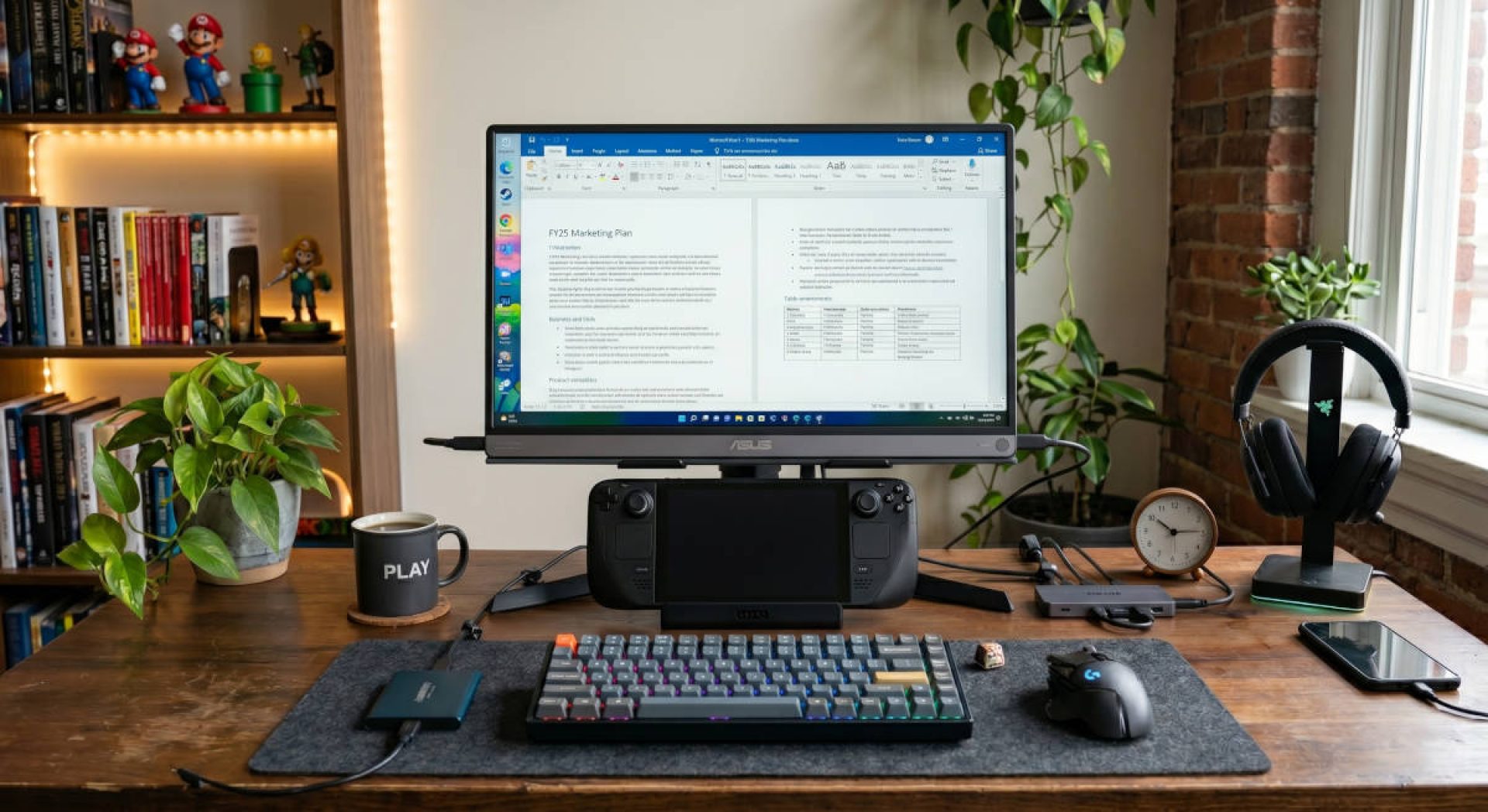
You can’t work efficiently on a controller. To be “emergency-ready,” tuck the following budget-friendly items into your carrying case:
- The Travel Hub: A pocket-sized USB-C dongle (around PHP 1,500) with an HDMI port and at least two USB-A ports. (You can buy cheaper ones, but you will sacrifice build quality, and if you are on the go, you need durable gadgets.)
- Portable Keyboard: A Bluetooth mechanical or magnetic foldable keyboard takes up less space and saves you from the nightmare of typing reports with a joystick.
- A 65W GaN Charger: A high-wattage wall plug ensures your “workstation” doesn’t die mid-save.
We can go budget-friendly with this setup because we are only going to use it for office work like writing articles/papers, light graphic design, or light video editing work.
Hardware Setup: The Step-by-Step
Connecting your hardware should be a “plug-and-play” affair, even in a rush.
- Power First: Plug your 65W+ charger into the USB-C Hub’s “Power Delivery” (PD) port. This ensures the handheld doesn’t drain while powering your mouse and keyboard.
- The Handshake: Connect the Hub’s main USB-C cable to your handheld’s charging port.
- Peripheral Connection:
- Wired: Plug your mouse and keyboard into the Hub’s USB-A ports.
- Bluetooth: On your handheld, go to Settings > Bluetooth and put your keyboard/mouse into pairing mode.
- Wired: Plug your mouse and keyboard into the Hub’s USB-A ports.
- The Monitor (Optional): If a TV is available, connect an HDMI cable from the Hub to the screen. Your handheld will usually detect it automatically.
- Another option is to pack a portable monitor with you.
Entering Desktop Mode
Hardware is set up, and time is of the essence; don’t fumble through menus.
- Steam Deck: Press the Steam Deck Button and select “Switch to Desktop.”
- Windows Handhelds (Ally/Go/Claw): You’re already on Windows! Use the Command Center to toggle “Desktop Mode,” so your joysticks act as a mouse until your keyboard is synced.
Desktop Software Essentials
Don’t wait for an emergency to set up your tools. Ensure these are pre-installed:
- A Solid Browser: Chrome or Edge is where 90% of modern work (Google Docs, Slack, Outlook) happens.
- LibreOffice or Office 365: For those moments when you lose Wi-Fi and need to edit a spreadsheet or document offline.
- Cloud Sync: Keep your “Work” folder synced with your preferred cloud storage service so your files are ready when you go back online.
- Preferred Video Editing/Design App – for social media cards or short-form social media post editing on the go.
Yes, there are many more apps we could list here, but these suggestions will help you get started most of the time.
Small Screen Mode
As a last resort, if you don’t have a monitor or TV nearby, your 7-inch screen is your only option.
- Scale Up: Example, on a Steam Deck, use the Accessibility settings in Gaming Mode for the overall interface. Navigate to Settings -> Accessibility -> UI Scaling and use the slider to increase text and menu sizes.
- For Desktop Mode, use Display Configuration to adjust “Global Scale.”
- Prop it Up: Use your carrying case or a kickstand to bring the screen to eye level. Your neck will thank you.
A Solid Back-Up Plan
A Handheld PC is a Personal Computer that can be used for entertainment and work. Whether you’re finishing a school essay or patching a server, your gaming device is a good backup workhorse for when the main one bogs down. Knowing how to flip that switch isn’t just a nifty trick; it is a solid plan B.
You can also read our article on how Handheld PCs can be a fun way to clear your backlog of retro games, and for other tech news and reviews, click HERE.

Started his freelancing adventure in 2018 and began doing freelance Audio Engineering work and then started freelance writing a few years later.
Currently he writes for Gadget Pilipinas and Grit.PH.
He is also a musician, foody, gamer, and PC enthusiast.