How to Initially Setup Your New N900

Congratulations on your new Nokia N900. I assume that you’re a geek and you know a bit about unix and networking that’s why you bought that phone. If you want to learn how to maximize the purpose and value of your phone then I guess you need to learn some N900 basics. I also assume that you have already updated your N900 firmware to Nokia N900 Firmware Updated to 2.2009.51-1.

I’ll cover 3 topics for now:
1. How to add extra repositories in order to install more applications.
2. How to integrate Yahoo!, Gmail and Facebook in Contacts and Conversations. (Update: Live now!)
3. How to Install SSH on your N900 and be able to access its filesystem. (soon)

Let’s begin:

How to add extra repositories in order to install more applications.
Extra

This is basically one of the primary and easiest tasks you should do after unboxing your N900. Please be aware though that I am not encouraging you to install untested and development-stage applications from dev repositories because it may damage your phone. There is also a high probability that untested and dev-stage apps are not yet optified thus may eat your RAM and make your phone perform very very very slow if not useless.

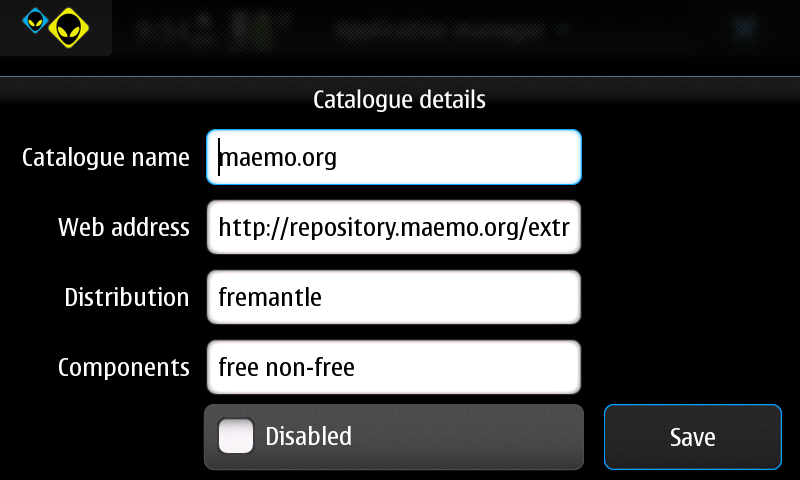
Enable Maemo.Org Extra Applications

The N900′s application manager has a pre-installed (but disabled) maemo repository ‘maemo.org’.

+ Tap the Application Manager Drop down menu

+ Click Application Catalogues

+ Tap ‘maemo.org’ repository then uncheck the Disabled.

+ Exit the Catalogue details and let your N900 refresh the Catalogues. You may now install Applications from Maemo.org. You may install applications like ‘Conversations Inbox Desktop Widget’, ‘Flashlight’, ‘Gonvert’, ‘iNes’, etc.

Enable Extras-Testing Applications

Enabling this repository can give you access to more applications. In order to enable this repository, visit this website using your N900 and click the image below.

Enable Extras Testing

Click this on your N900 to enable Extras-Testing

You can also do it manually by adding these details into the catalogue:

+Goto Application manager –> Application catalogs –> New

Catalog name: maemo.org extras-testing

Web address: http://repository.maemo.org/extras-testing

Distribution: fremantle

Components: free non-free

Enable Extras-Devel Applications

Enabling this repository can give you access to even more applications. As mentioned earlier, I do not recommend that you install applications in this repository because it may seriously damage your phone. In order to enable this repository, visit this website using your N900 and click the image below.

Enable extras devel

Click this on your N900 to enable Extras-Devel

Goto Application manager –> Application catalogs –> New

Catalog name: Maemo Extras-devel

Web address: http://repository.maemo.org/extras-devel

Distribution: fremantle

Components: free non-free

Click this to proceed to How to integrate Yahoo!, Gmail and Facebook in Contacts and Conversations.

Popularity: 8% [?]

Discuss Using Facebook


Other Comments

8 Comments

  1. Rho says:

    hi, i am so enjoying your write ups about n900, read it all and it is amazing and informative. thank you so much! just wanna ask again, have u tried doing torrent and ftp in your n900, i mean ive seen alot of youtube videos testing it but i want to know if you tried it already like how much is the download speed and the upload speed using philippine carriers. I am also torn between android and maemo phones. n900 is best for browsing which i really really like plus is can play flash which it made irresistible but android has lots applications including ftp and torrent downloading which is my top priority as of the moment. please help. :) if n900 has torrents and ftp am really getting this phone. please enlighten me. :)

    • gianviterbo says:

      Hi rho, thank you for dropping by the site and appreciating our posts.

      I actually haven’t tried downloading torrents in my phone because i would prefer doing it on my laptop or desktop, but I’m actually bound to try it. you might want to try downloading Transmission here. Please be informed though that the latter link will forward you to Extras-Testing repo on your Application Manager. Prior to doing this, please be sure that you enabled extras-testing repository. Please do some backread on how to install extras-testing repo. Anyway, Tranmission, being in its beta stage, has some mixed reviews. Some say it’s fast, but others would say it sucks bigtime. Some say that it performs almost on par with their desktop. My initial take on this is that its speed would depend on your carrier and plan.

      For ftp, you might want to try gftp .

      Android is a great OS. With its vast number of available applications, I believe that it’s one of the most well represented OS’s available. Still, I would choose Maemo (and soon.. Meego) over this because I believe that there is a huge potential for this OS.

  2. Rho says:

    thank you so much for the reply. am still undecided though, will meego upgrade be available for n900?

    • yes, it will come. :)

  3. marc says:

    your write-ups for the N900 are really informative. have you tried using GPRS on your N900? i’m a globe prepaid user and i can’t surf the net through Globe’s 3g. according to globe representative, they don’t have a GPRS settings for the unit yet. i tried manually configuring the settings but still i can’t seem to connect. tried tweakker too to no avail. can you help me? thanks.

    • gianviterbo says:

      Hi Marc. Thanks for visiting the site. I hooked my Globe Tattoo prepaid sim the other day and my N900 automatically detected the 3g signal. I tried surfing the net and it worked flawlessly. For Globe prepaid, you might want to try on manually inputting its APN for prepaid internet.

      Operator: – Globe
      GPRS APN: – http://www.globe.com.ph
      Username: – globe
      Password: – globe
      DNS: – 203.127.225.10, 203.127.225.11

      Please be informed as well that since you are using an HSDPA capable phone, given the available signal, it will connect you to 3.5G and not 2G or GPRS. Hope this helps.

  4. marc says:

    thanks. i think it has to do with the initial set up on my globe prepaid sim. i tried another sim and it worked.

  5. marc says:

    i noticed that when i used another sim card, the GPRS settings changes and when i replace my own sim, it reverts back to its original settings. how can i erase the settings on my SIM so that it will be like a fresh start between my phone and my SIM?

1 Trackbacks

  1. N900 To Be Available in the Philippines in March 2010 | Gadget Pilipinas

    [...] How to Initially Setup your N900 – February 1 0 I like This Post Bookmark and Share: [...]

Leave a Reply

Your email address will not be published. Required fields are marked *

*

You may use these HTML tags and attributes: <a href="" title=""> <abbr title=""> <acronym title=""> <b> <blockquote cite=""> <cite> <code> <del datetime=""> <em> <i> <q cite=""> <strike> <strong>

Content Protected Using Blog Protector By: PcDrome.